MapsGL - Layer Ordering
Starting with MapsGL 1.10.0, layers can be stacked using slots — named bands that sit in a fixed order — and a stack rank that orders siblings inside a band. You no longer need to find a Mapbox or MapLibre style layer id just to keep weather fills under admin boundaries or radar above temperatures.
Slots are opt-in and not enabled by default. Existing stacking behavior is unchanged until you turn them on when creating the controller:
const controller = new MapboxMapController(map, {
    account,
    slots: true
});
Pass slots: true for the built-in bands and ranks, or a config object to override type → slot mapping, default ranks, and host ceilings. Once enabled, add layers as usual. MapsGL assigns each one to a slot from its render type and a rank from its weather code, then projects that order onto the host map.
Built-in slots
Slots are ordered top → bottom:
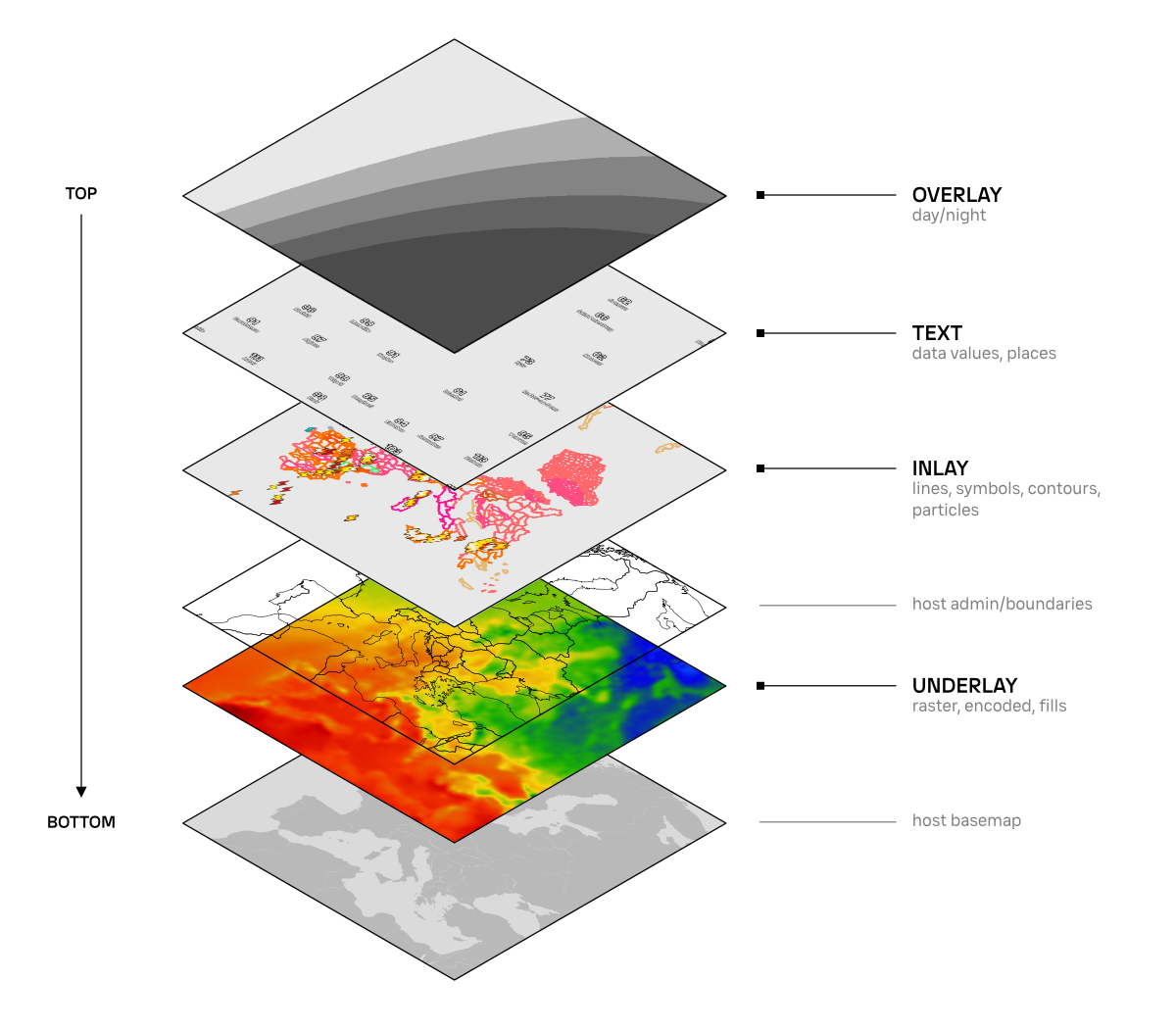
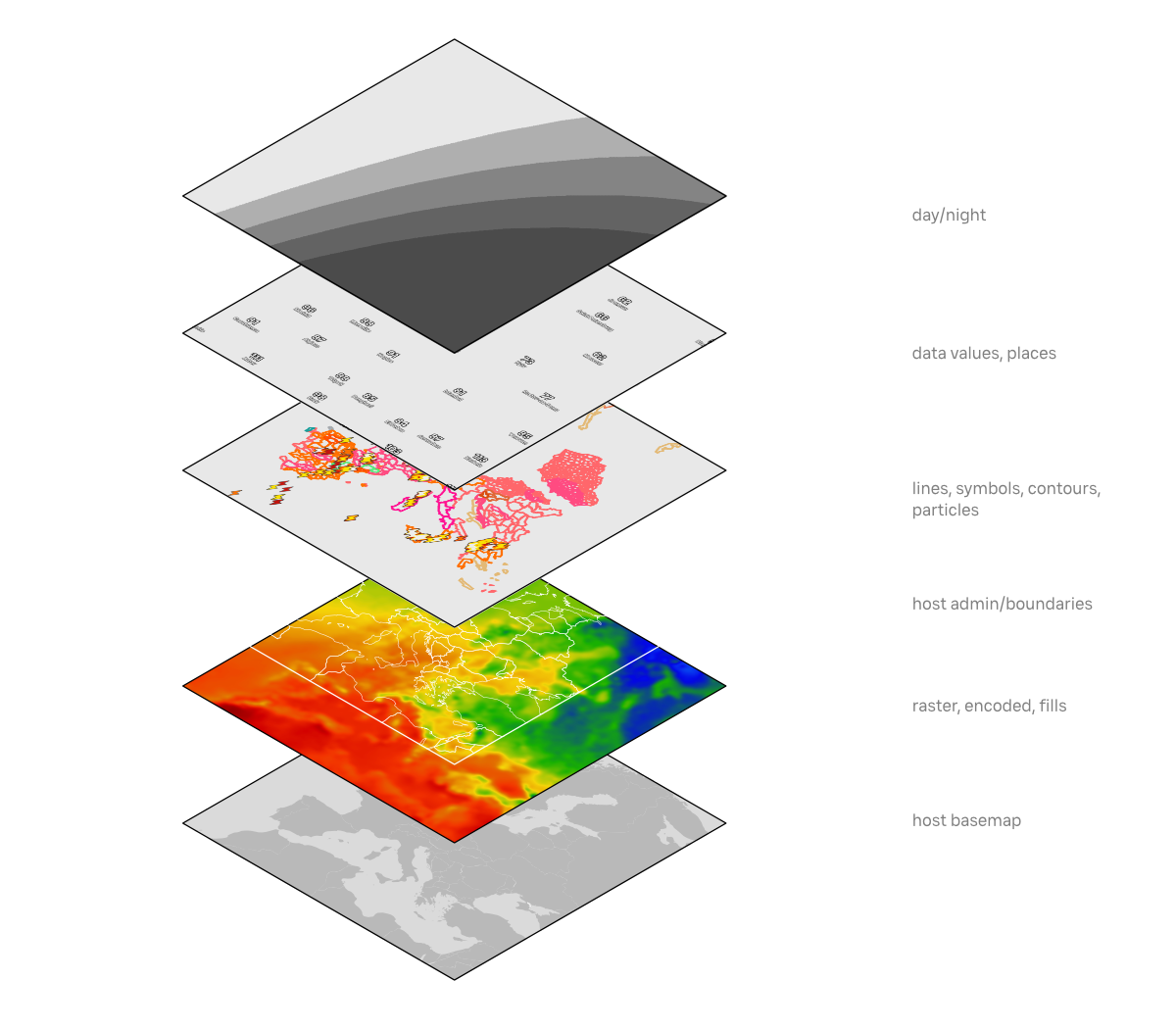
| Slot | Typical contents | Default placement |
|---|---|---|
overlay | Day/night terminator, debug, and other chrome | Topmost MapsGL band |
text | Text / city-label layers (LayerType.text, or an id/code ending in -text / .text) | Above inlay |
inlay | Particles, lines, circles, symbols, contours, grids, and other vector marks | Above underlay; within the slot, particles paint below contour / line / circle / symbol |
underlay | Raster, sample, heatmap, data, and polygon fills | Classic Mapbox / MapLibre: below admin boundaries. Mapbox Standard: native middle band (below labels) |
Slot order always wins across bands: every inlay layer paints above every underlay layer, regardless of rank. Unknown layer types fall into inlay. Custom slots you define are inserted just below overlay unless you replace the full order.
There is no separate particles slot — particle layers use inlay and a particle stack rank so they stay under contours and other vector marks when everything shares a band.
Default stacking
These three calls already produce a sensible stack — temperatures and radar in underlay (radar on top), wind particles in inlay above them, admin lines still visible on Mapbox / MapLibre:
controller.on('load', () => {
    controller.addWeatherLayer('temperatures');
    controller.addWeatherLayer('radar');
    controller.addWeatherLayer('wind-particles');
});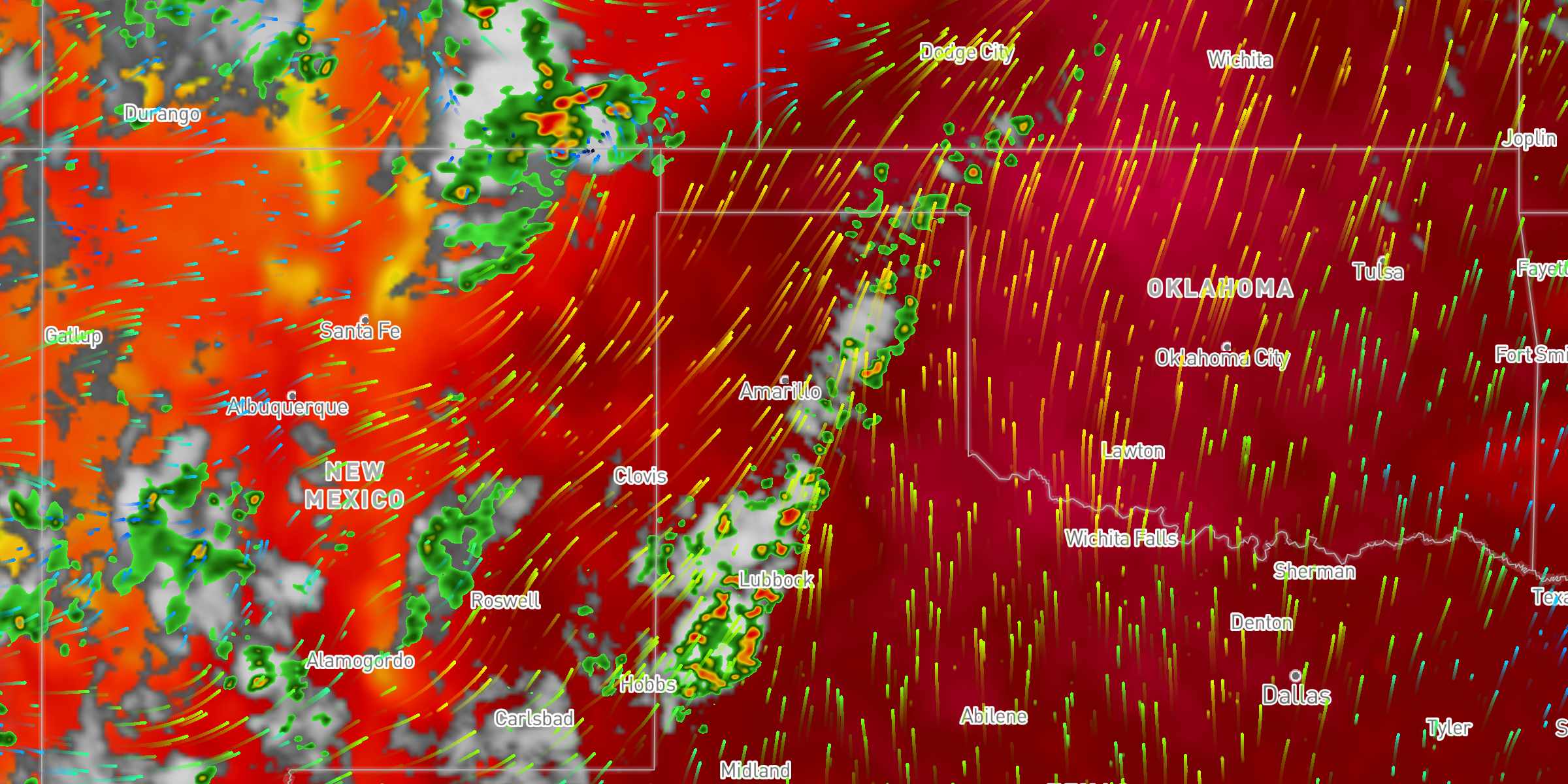
You do not need to search the host style for an admin-* layer id. On Mapbox GL and MapLibre GL classic styles, the underlay slot is pinned below the bottom-most administrative boundary layer in the loaded style. On Mapbox Standard styles, underlay maps to the native middle band instead (below labels), and the other MapsGL slots map to top.
Stack rank
Inside a single slot, higher rank paints above. Built-in ranks form one global top → bottom chain so layers still paint in a sane order even if you dump several types into the same slot:
| Rank | Applies to |
|---|---|
1000 | Day/night overlay chrome |
900 | Text / label layers |
800 | Symbol |
700 | Circle (also grid) |
600 | Line (also query / voronoi / coverage masks) |
500 | Contour |
400 | Particle fields |
350 | Admin / boundary overlays (BuiltinStackRank.boundaries) |
300 | Radar |
200 | Satellite |
100 | Fill |
50 | Precip / snow / sleet / ice sample codes (precip-*, snow-*, sleet-*, ice-*) |
0 | Default (generic sample, data, debug, and other unmarked types) |
Global top → bottom: overlay → text → symbol → circle → line → contour → particle → boundaries → radar → satellite → fill → precip → default.
So a typical underlay bottom → top is: temperatures → precip → fills → satellite → radar. A typical inlay bottom → top is: particles → contour → line → circle → symbol. A typical overlay bottom → top is: debug (0) → day/night (1000). The day/night overlay is also re-pinned to the top of the MapsGL list whenever other layers are added or moved.
Rank is resolved in this order: explicit stackRank on the layer, a custom resolver, an exact weather-code match (radar, satellite, or your overrides), text-key / text-type, a radar / satellite / precip heuristic on the layer id, a layer-type default, then 0.
Overriding slot and rank when adding
Pass slot and/or stackRank in the weather layer overrides (or on a custom layer specification):
// Keep radar in underlay, but paint it below satellite (satellite defaults to 200)
controller.addWeatherLayer('radar', {
    stackRank: 150
});

// Lift alerts out of inlay into overlay
controller.addWeatherLayer('alerts', {
    slot: 'overlay'
});
The same options work on addLayer for custom sources.
Moving layers after they are added
Slot and rank APIs take the MapsGL layer id, not the weather layer code. Capture the instance returned by addWeatherLayer, or look it up with getWeatherLayer:
const radar = controller.addWeatherLayer('radar');

controller.getSlot(radar.id);       // 'underlay'
controller.getStackRank(radar.id);  // 300

controller.moveLayerToSlot(radar.id, 'inlay');
controller.setStackRank(radar.id, 20);
moveLayerToSlot keeps the layer’s current rank and re-inserts it among siblings in the target slot. setCodeStackRank('radar', 320) changes the default rank for future inserts that resolve from that weather code; it does not move layers already on the map.
Pinning a slot below a host style layer
On Mapbox GL and MapLibre GL classic styles, each slot can be pinned below a host style layer id. That id is the slot’s ceiling: every MapsGL layer in the band inserts before it (paints underneath) while still stacking among themselves by rank.
// Move the entire underlay band under waterway labels
controller.setSlotBeforeId('underlay', 'waterway-label');

// Restore the default (bottom-most admin boundary)
controller.setSlotBeforeId('underlay', null);

const ceiling = controller.getSlotHostBeforeId('underlay');
Changing a slot’s ceiling does not change which layers belong to the slot or their ranks. It only moves the band in the host style stack. Clearing beforeId restores the adapter default; on classic styles that is the bottom-most admin-boundary-like layer for underlay.
You can also seed ceilings when constructing the controller:
const controller = new aerisweather.mapsgl.MapboxMapController(map, {
    account,
    slots: {
        slots: {
            underlay: { beforeId: 'waterway-label' }
        }
    }
});
Google Maps and Leaflet still honor MapsGL slot order and ranks among MapsGL layers. They do not expose a classic style-layer stack, so setSlotBeforeId has no host ceiling to pin to.
Mapbox Standard styles
Mapbox Standard styles (mapbox://styles/mapbox/standard and similar) do not use a classic beforeId stack. Instead, MapsGL slots map into native Standard bands: bottom, middle, and top. That mapping is a host-style concern on MapboxMapController — not a MapsGL slot id. MapLibre, Google Maps, and Leaflet do not expose these bands.
When unset, the adapter defaults are:
| MapsGL slot | Default Standard band |
|---|---|
underlay | middle (below labels) |
inlay, text, overlay, and custom slots | top (above labels) |
Pin or inspect bands at runtime with the Mapbox controller methods. Clearing a pin restores those defaults. setSlotMapboxSlot preserves any classic beforeId; setSlotBeforeId preserves any mapboxSlot. The adapter uses whichever mapping matches the current style.
if (controller.usesMapboxStandardSlots()) {
    // Lift underlay into the top Standard band (above labels)
    controller.setSlotMapboxSlot('underlay', 'top');

    controller.getSlotMapboxSlot('underlay');       // 'top'
    controller.listMapboxStandardSlots();           // ['bottom', 'middle', 'top']
}

// Restore adapter defaults (underlay → middle)
controller.setSlotMapboxSlot('underlay', null);
You can seed the same mapping at construct time:
const controller = new aerisweather.mapsgl.MapboxMapController(map, {
    account,
    slots: {
        slots: {
            underlay: { mapboxSlot: 'bottom' }
        }
    }
});
On Standard styles, getSlotHostBeforeId('underlay') does not fall back to an admin-boundary layer id. Use getSlotMapboxSlot to see which native band the slot occupies.
Slot ceiling vs per-layer beforeId
| Mechanism | Scope | Slot membership |
|---|---|---|
setSlotBeforeId(slotId, hostLayerId) | Entire slot band (classic Mapbox / MapLibre) | Layers stay slotted; the band moves together |
setSlotMapboxSlot(slotId, 'bottom' | 'middle' | 'top') | Entire slot band (Mapbox Standard) | Layers stay slotted; the band moves to that native band |
addWeatherLayer / addLayer / moveLayer with a MapsGL beforeId | That layer, relative to a sibling | Joins or stays in the target layer’s slot |
addWeatherLayer / addLayer / moveLayer with a host style beforeId | That one MapsGL layer | Layer is unassigned from slots (absolute escape hatch) |
const temps = controller.addWeatherLayer('temperatures');

// Relative to another MapsGL layer — stays in the slot model
controller.addWeatherLayer('radar', null, temps.id);

// Absolute pin under a Mapbox style layer — leaves the slot model
controller.moveLayer(temps.id, 'admin-0-boundary');
Use slot ceilings (setSlotBeforeId or setSlotMapboxSlot) for “put all underlay content under admin lines / labels.” Use a per-layer host beforeId only when a single layer must sit somewhere the slot model cannot express.
moveLayer(id) with no beforeId keeps the layer’s current slot, or assigns overlay if the layer was unslotted.
Unslotted layers
Unslotted layers are not bucketed into a single “outside slots” group. They keep a true position in the MapsGL stack and can sit above, between, or below the slot bands (for example between underlay and inlay, or above overlay).
A layer becomes unslotted when you pin it with a host style beforeId, or when moveLayer targets a neighbor that is itself unslotted (or when the mover is already unslotted and you move relative to another MapsGL layer). Slot membership changes only in these cases:
moveLayer target | Slot effect |
|---|---|
| Another MapsGL layer, and both are slotted | Mover joins the target’s slot and reorders among siblings |
| Another MapsGL layer, and either is unslotted | Mover is unassigned; stack order changes absolutely |
| A host style layer id | Mover is unassigned; absolute pin on the host |
Omitted (moveLayer(id)) | Keeps the current slot, or assigns overlay if unslotted |
const temps = controller.addWeatherLayer('temperatures');
const radar = controller.addWeatherLayer('radar');

// Escape hatch — temps leaves the slot model and sits under a basemap layer
controller.moveLayer(temps.id, 'admin-0-boundary');

// Relative to that unslotted neighbor — radar also leaves slots and sits just below temps
controller.moveLayer(radar.id, temps.id);

// Rejoin the slot model (rank is preserved)
controller.moveLayerToSlot(radar.id, 'underlay');
Use this when one layer must break out of the band model. Prefer slot / stackRank / moveLayerToSlot for day-to-day stacking so layers stay in bands that move together when you change a slot ceiling.
Custom slots
Define additional bands when you need a group that is not one of the builtins. New slots are inserted below overlay by default:
controller.defineSlot('below-poi', { beforeId: 'poi-label' });
controller.moveLayerToSlot(layer.id, 'below-poi');

// Or replace the full bottom → top order
controller.setSlotOrder([
    'underlay',
    'inlay',
    'below-poi',
    'text',
    'overlay'
]);

controller.listSlots();
Constructor slots options can also override type → slot mapping and default ranks:
const controller = new aerisweather.mapsgl.MapboxMapController(map, {
    account,
    slots: {
        typeMapping: {
            fill: 'inlay'
        },
        stackRanks: {
            radar: 320
        }
    }
});
Inspecting order
controller.listSlots();
controller.getSlot(layer.id);
controller.getStackRank(layer.id);
controller.getSlotHostBeforeId('underlay');

// Mapbox Standard styles only (MapboxMapController)
if (controller.usesMapboxStandardSlots()) {
    controller.getSlotMapboxSlot('underlay');
    controller.listMapboxStandardSlots();
}
listSlots() returns slot definitions in bottom → top order, including each slot’s configured beforeId and mapboxSlot when set.
See the layer ordering example for a live demo of default stacking, pinning underlay under a host style layer, and moving radar into inlay.