MapsGL - Layer Masks
Layer masks control which parts of a layer are visible by stenciling its output with one or more other layers. Use them to clip weather or raster data to land, water, administrative boundaries, or any fill/line geometry already on the map.
Configure a mask when you add the layer, or change it later with controller.setMask().
Configuration
Weather layers accept a LayerMaskConfiguration. The same layers, invert, and mode fields apply when you pass a mask to addLayer. A string is treated as a single mask layer id.
type LayerMaskConfiguration = {
    layers?: Array<{
        id: string;
        overrides?: Partial<WeatherLayerOptions>;
    }>;
    type?: 'water' | 'land';
    invert?: boolean;
    mode?: 'all' | 'any';
};| Option | Description | Default |
|---|---|---|
layers | Type: Array<{ id: string; overrides?: object }> ()Mask layers to apply. Each id can be a MapsGL layer id already on the map, or a weather layer code (created as {code}::mask if missing). Takes precedence over type. | |
type | Type: water or land ()Built-in preset. water clips to water; land is the water layer inverted. Ignored when layers is set. | |
invert | Type: boolean ()When true, the layer is visible outside the mask instead of inside it. | |
mode | Type: all or any ()How multiple mask layers combine. all is the intersection (visible only where every mask hits). any is the union (visible where at least one mask hits). | |
The deprecated ids array is still accepted and mapped to layers, but new code should use layers.
Example usage
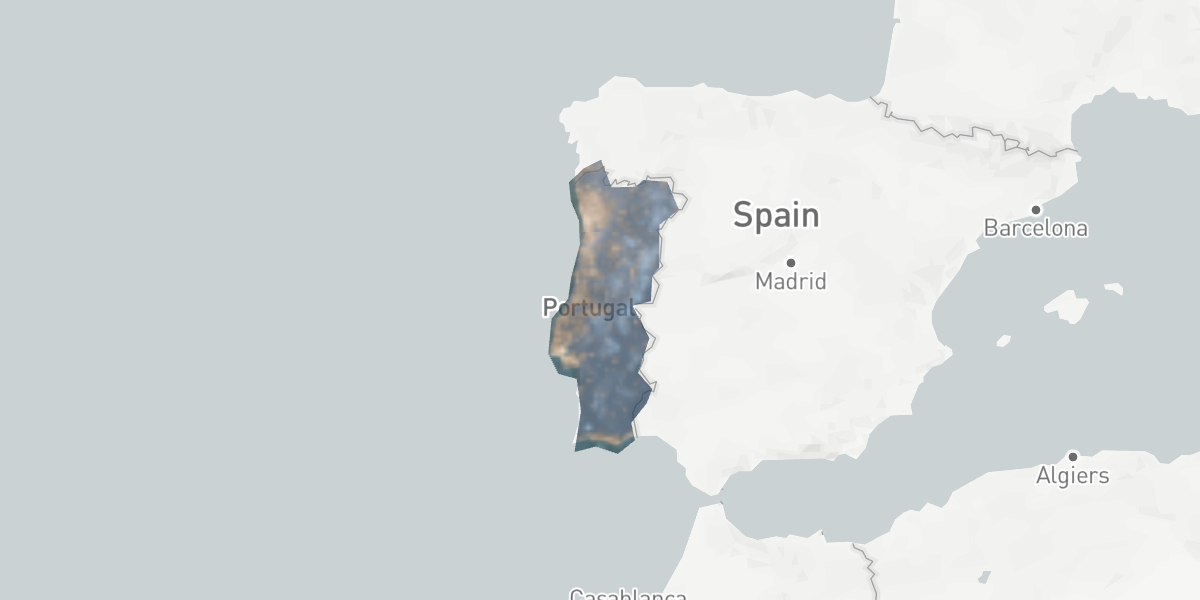
Mask a raster tile layer with an administrative boundary provided as GeoJSON:
controller.addSource('admin-boundaries', {
    type: 'geojson',
    data: {
        type: 'FeatureCollection',
        features: [
            {
                type: 'Feature',
                properties: {},
                geometry: {
                    type: 'Polygon',
                    coordinates: [
                        [
                            [-9.034817674180246, 41.88057058365967],
                            [-8.67194576662672, 42.13468943945496],
                            [-8.263856980817792, 42.28046865495034],
                            [-8.013174607769912, 41.790886135417125],
                            [-7.422512986673795, 41.79207469335983],
                            [-7.251308966490824, 41.91834605566505],
                            [-6.668605515967656, 41.883386949219584],
                            [-6.389087693700915, 41.381815497394655],
                            [-6.851126674822552, 41.11108266861753],
                            [-6.864019944679385, 40.33087189387483],
                            [-7.026413133156595, 40.184524237624245],
                            [-7.066591559263529, 39.71189158788277],
                            [-7.498632371439725, 39.62957103124181],
                            [-7.098036668313128, 39.03007274022378],
                            [-7.374092169616318, 38.37305858006492],
                            [-7.029281175148796, 38.07576406508977],
                            [-7.166507941099865, 37.803894354802225],
                            [-7.537105475281024, 37.42890432387623],
                            [-7.453725551778092, 37.09778758396607],
                            [-7.855613165711985, 36.83826854099627],
                            [-8.382816127953689, 36.97888011326246],
                            [-8.898856980820327, 36.86880931248078],
                            [-8.746101446965554, 37.65134552667661],
                            [-8.839997524439879, 38.26624339451761],
                            [-9.287463751655224, 38.3584858261586],
                            [-9.526570603869715, 38.73742910415491],
                            [-9.446988898140232, 39.39206614842837],
                            [-9.048305223008427, 39.75509308527877],
                            [-8.977353481471681, 40.15930613866581],
                            [-8.768684047877102, 40.76063894303019],
                            [-8.79085323733031, 41.18433401139126],
                            [-8.99078935386757, 41.54345937760364],
                            [-9.034817674180246, 41.88057058365967]
                        ]
                    ]
                }
            }
        ]
    }
});

controller.addLayer('admin-mask', {
    type: 'fill',
    source: 'admin-boundaries'
});

controller.addSource('satellite-geocolor', {
    type: 'raster',
    url: `https://maps{s}.aerisapi.com/${CLIENT_ID}_${CLIENT_SECRET}/satellite-geocolor/{z}/{x}/{y}/0@2x.png`
});

controller.addLayer('satellite', {
    type: 'raster',
    source: 'satellite-geocolor',
    paint: {
        opacity: 0.7
    },
    mask: {
        layers: [{ id: 'admin-mask' }]
    }
});
Masking weather layers
Weather layers use the same mask object on addWeatherLayer. This is useful for showing data only inside a country, state, or other region.
Basic land and water masks
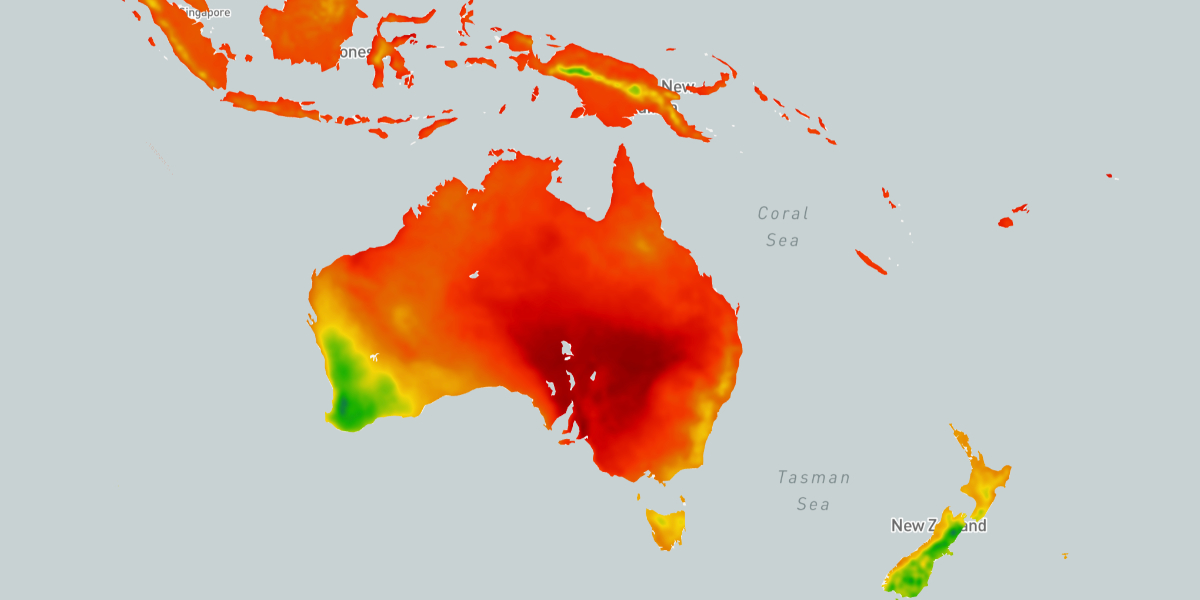
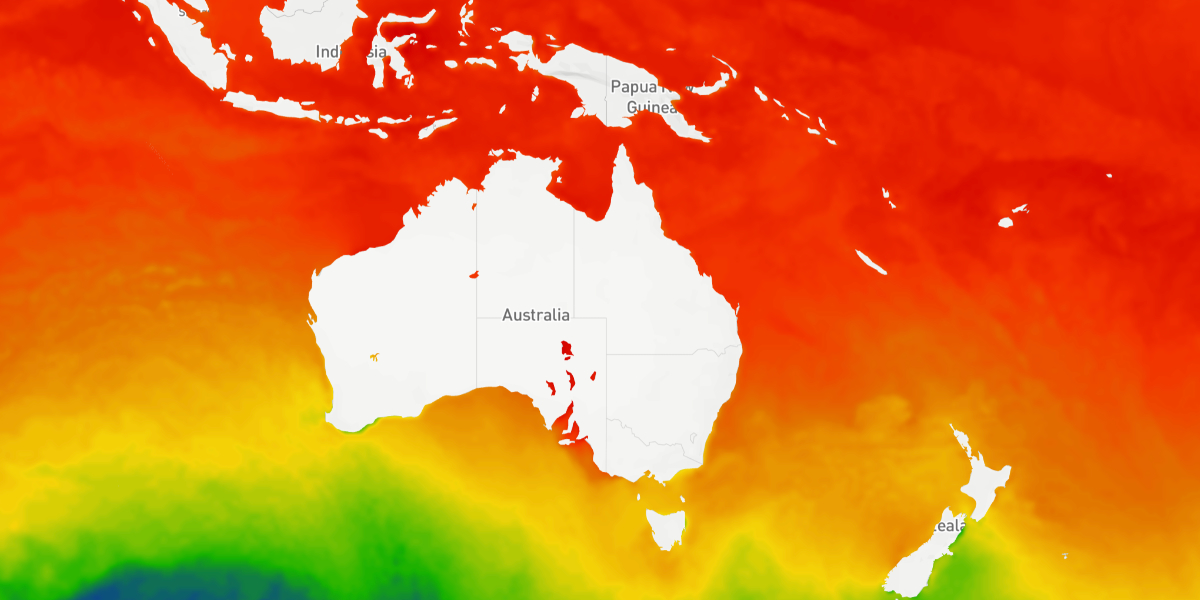
MapsGL includes land and water presets built from the water layer:
controller.addWeatherLayer('temperatures', {
    mask: { type: 'land' }
});
controller.addWeatherLayer('temperatures', {
    mask: { type: 'water' }
});
Custom mask layers
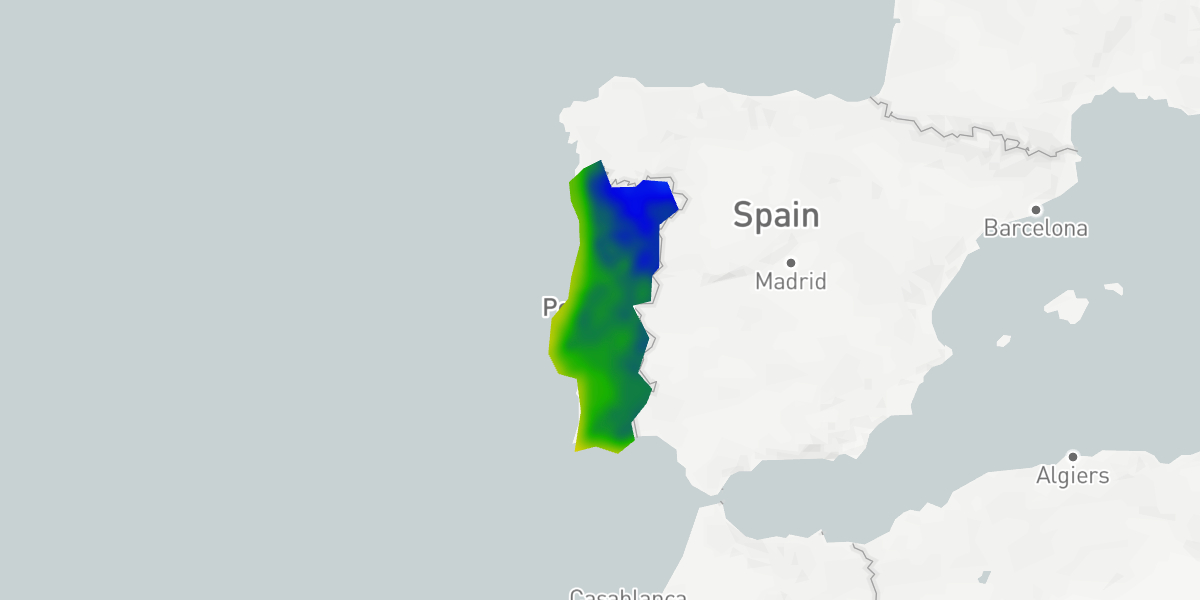
Clip a weather layer to a region you already added:
controller.addWeatherLayer('temperatures', {
    mask: {
        layers: [{ id: 'admin-mask' }]
    }
});
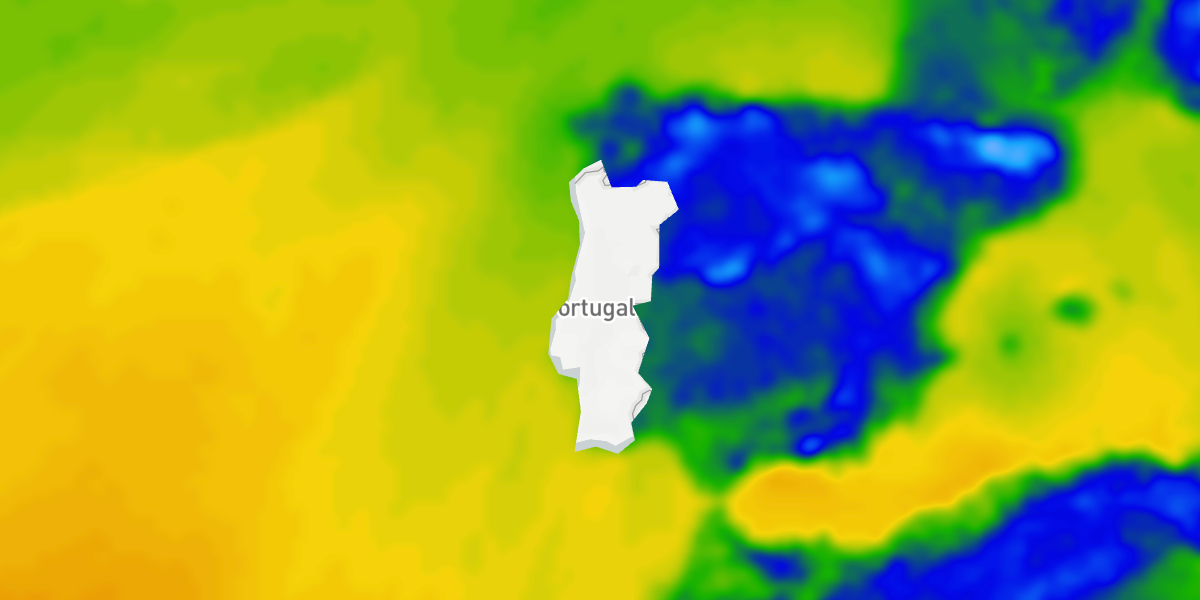
Invert the mask to show data outside that region:
controller.addWeatherLayer('temperatures', {
    mask: {
        layers: [{ id: 'admin-mask' }],
        invert: true
    }
});
You can pass the id from the layer instance returned by addLayer:
const adminLayer = controller.addLayer('admin-mask', {
    type: 'fill',
    source: 'admin-boundaries'
});

controller.addWeatherLayer('temperatures', {
    mask: {
        layers: [{ id: adminLayer.id }],
        invert: true
    }
});
Weather layer codes work as mask ids too. If the layer is not already on the map, MapsGL adds a {code}::mask instance and does not treat it as an active weather layer:
controller.addWeatherLayer('temperatures', {
    mask: {
        layers: [{ id: 'water' }]
    }
});
Use overrides on a weather-code entry when the mask layer needs a filter or other options.
Multiple masks using modes
Pass more than one layer in layers. The default mode is 'all' (intersection). Use 'any' for a union.
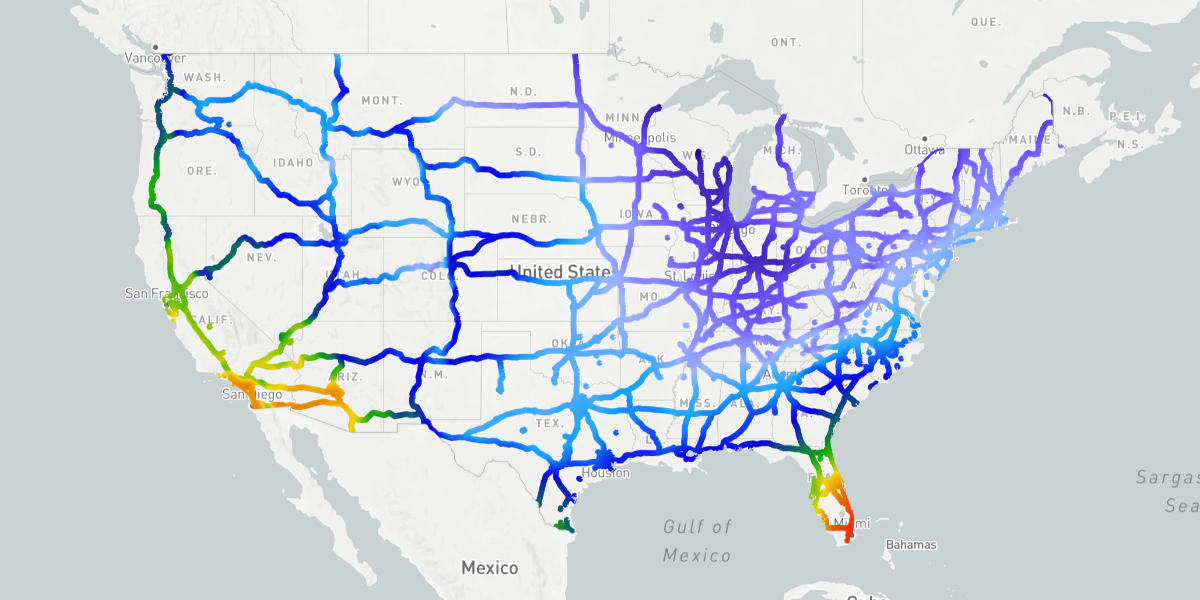
For example, temperatures only along major US highways — the intersection of a US polygon layer and road-motorway:
const countriesSource = controller.addSource('naturalearth', {
    type: 'vector',
    url: '/path/to/naturalearth/{z}/{x}/{y}.pbf',
    maxZoom: 7
});
const countriesLayer = controller.addLayer('countries', {
    type: 'fill',
    source: 'naturalearth',
    sourceLayer: 'countries',
    filter: ['==', 'ISO_A2', 'US']
});

const highwaysLayer = controller.addWeatherLayer('road-motorway', {
    paint: {
        stroke: {
            thickness: 5
        }
    }
});

controller.addWeatherLayer('temperatures', {
    mask: {
        layers: [
            { id: countriesLayer.id },
            { id: highwaysLayer.id }
        ],
        mode: 'all'
    }
});
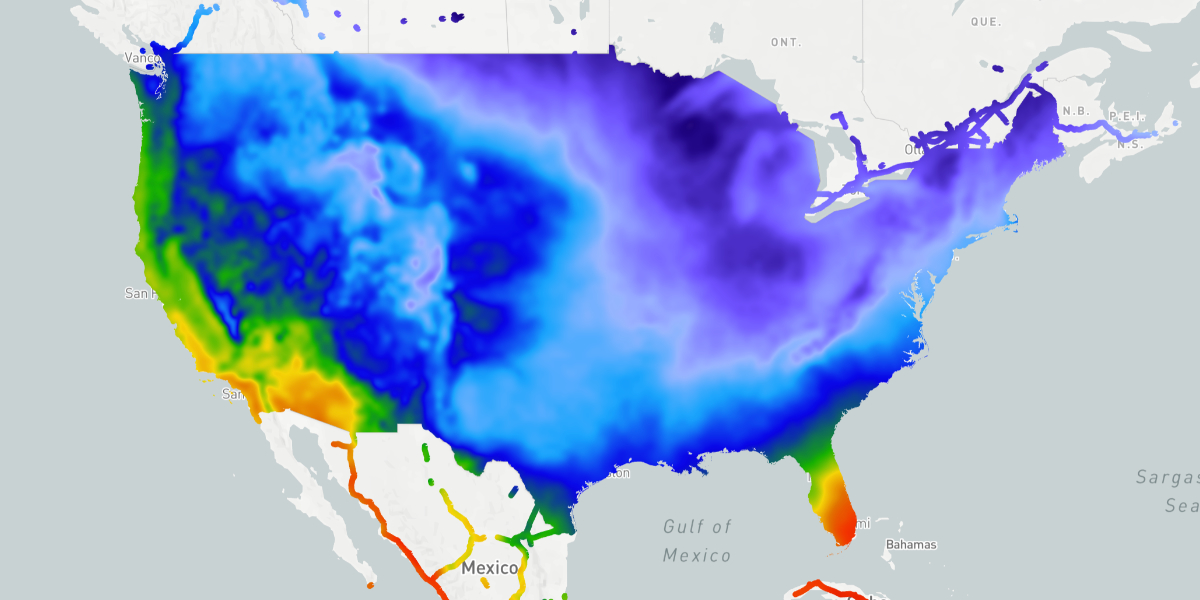
'any' shows temperatures anywhere either mask is visible — the entire US, plus motorways globally:
controller.addWeatherLayer('temperatures', {
    mask: {
        layers: [
            { id: countriesLayer.id },
            { id: highwaysLayer.id }
        ],
        mode: 'any'
    }
});
Changing masks at runtime
Starting with MapsGL 1.10.0, setMask updates or clears a layer’s mask without removing the layer. The first argument is a MapsGL layer id or a weather layer code. The second argument is the same configuration used when adding the layer — or null / undefined to clear.
controller.addWeatherLayer('temperatures');

controller.setMask('temperatures', { type: 'land' });
controller.setMask('temperatures', { type: 'water' });

controller.setMask('temperatures', {
    layers: [{ id: 'admin-mask' }],
    invert: true
});

controller.setMask('temperatures', 'admin-mask');

controller.setMask('temperatures', null);
For composite weather codes that resolve to several layers, setMask applies to the first resolved instance. Pass that instance’s id when you need a specific child:
const layers = controller.addWeatherLayer('alerts');
const fill = Array.isArray(layers) ? layers[0] : layers;
controller.setMask(fill.id, { type: 'land' });
See setMask on the map controller reference, or the runtime layer mask example.
Queries and the data inspector
Feature queries and the data inspector honor the same stencil as rendering. A coordinate that is masked out does not produce a row or sample for that layer, including nodata inside a regional model coverage clip.
Regional model coverage
Regional forecast model layers (NBM, NDFD, and similar) are clipped to their native model grid automatically. You do not add that coverage mask yourself. See coverage clipping on the forecast models guide.