MapsGL Android - Preload animated weather data
Without preloading, a layer fetches each interval only when the playhead reaches it, so the first pass through the timeline runs at the speed of the network. This example fetches every frame for the visible viewport up front, so the first loop plays as smoothly as the second.
It is the Android port of the MapsGL JS Preload animated weather data example. The complete activity ships in the MapsGL Android SDK demo as PreloadAnimationDataActivity.
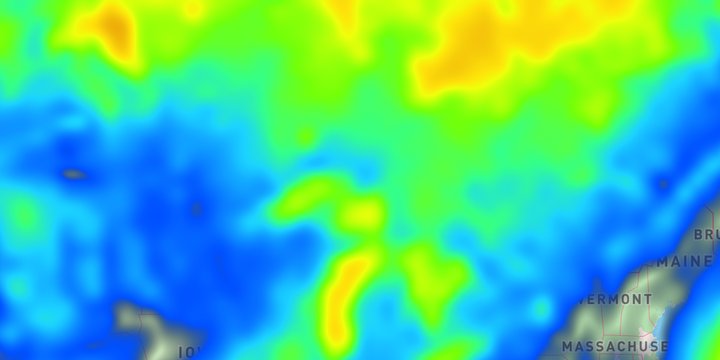
Turn preloading on, then start it
Preloading is a flag on the controller’s animationOptions. Setting it tells layers to fetch their whole interval set while the timeline is paused; preloadAnimationData() starts that work straight away instead of waiting for the next timeline change:
controller.animationOptions.shouldPreloadData = true
controller.animationOptions.shouldPauseWhileLoading = true
controller.addWeatherLayer(LayerCode.WIND_SPEEDS)
controller.preloadAnimationData()
The JS example gets the same result per layer, by calling loadData() on the layer’s animator once the layer is ready. On Android the call is on the controller and covers every animated layer on the map.
The demo also has a Preload now button bound to the same preloadAnimationData() call, and toggles that flip both flags at runtime, so you can turn preloading off and compare the first loop.
Hold playback while new data loads
Preloading covers the view the map opened on. Panning or zooming needs data for a new view, and shouldPauseWhileLoading decides whether the timeline waits for it. When it is on, the timeline pauses for the duration of the load, and shouldResumeAfterLoading — on by default — starts it again once the load finishes. Set that to false if your app should decide when to resume.
The JS example handles the same problem differently, by turning off resumeOnMoveEnd so the user resumes playback by hand after moving the map.
Show load progress
The stock timeline bar is hidden here (showTimelineBar = false), so the demo reads the controller’s load events itself. onLoadProgress carries a MapLoadProgress with tile counts, which gives a more useful readout than a spinner while a whole timeline is being fetched:
controller.onLoadStart.observe(this) { status.text = "Loading…" }
controller.onLoadProgress.observe(this) { progress ->
    if (progress.total > 0) status.text = "Loading ${progress.completed} / ${progress.total} tiles"
}
controller.onLoadComplete.observe(this) { status.text = "All frames loaded" }
Keep the buttons in step with the timeline
The timeline can change state without a button press — the pause-while-loading option pauses and resumes it — so the buttons follow the timeline’s events rather than only their own taps:
for (event in listOf(AnimationEvent.play, AnimationEvent.stop, AnimationEvent.PAUSE, AnimationEvent.RESUME)) {
    controller.timeline.on(event) { runOnUiThread { syncPlaybackState() } }
}
syncPlaybackState() reads timeline.isActive and timeline.isPaused to label Play/Stop and Pause/Resume, and disables Pause when nothing is running.
Preloading trades bandwidth and memory for a smooth first loop. It suits a short timeline, or a deliberate buffering step in your own UI, better than a long range at a wide zoom.
Related
- Set up timeline animation controls — the same play and pause wiring, plus a scrubber that follows the playhead
- Change timeline range — changing the range recalculates intervals, which is when new data has to load