MapsGL Android - Change timeline range
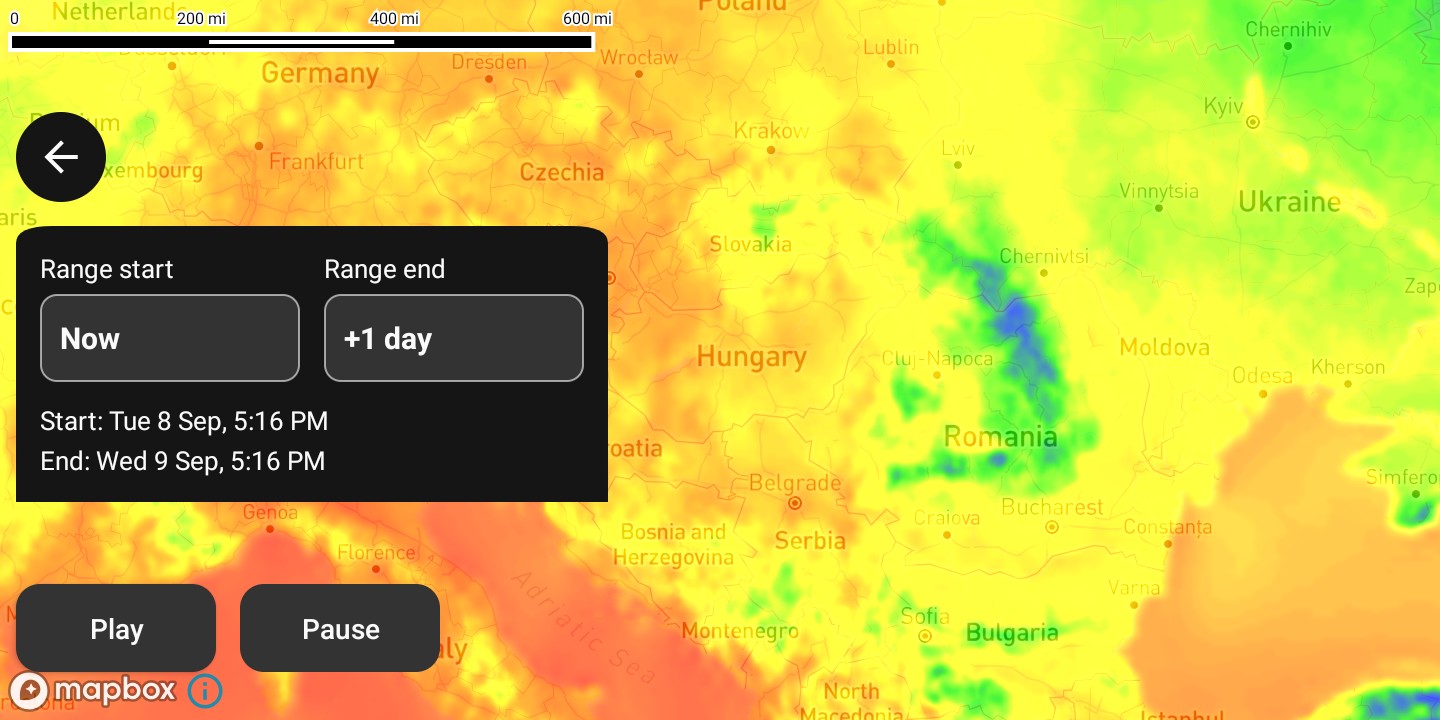
This example demonstrates how to update the timeline start and/or end date range in real-time.
When time-based layers are active on the map, new time intervals are calculated for the new range whenever the start or end changes. New data may therefore need to load when resuming playback, if the previous data does not cover the new range and its required intervals.
It is the Android port of the MapsGL JS Change timeline range example. The complete activity ships in the MapsGL Android SDK demo as ChangeTimelineRangeActivity.
Set up the map
Create a MapboxMapController, position the camera, and wait for the map to load.
import com.mapbox.maps.MapboxMap
import com.xweather.mapsgl.config.weather.account.XweatherAccount
import com.xweather.mapsgl.map.mapbox.MapboxMapController
import com.xweather.mapsgl.types.Coordinate

val xweatherAccount = XweatherAccount(
    getString(R.string.xweather_client_id),
    getString(R.string.xweather_client_secret),
)

val controller = MapboxMapController(mapView, xweatherAccount)
val mapboxMap = controller.mapboxMap ?: return

// Matches the JS example's `center: [20, 47], zoom: 4`. Coordinate is (lat, lon).
controller.setCenter(Coordinate(47.0, 20.0))
controller.setZoom(4.0)

val mapLoadedCancelable = mapboxMap.subscribeMapLoaded {
    // Seed the range before adding the layer, so the first set of intervals
    // is calculated for the range you actually want.
    applyEndOffset(endIndex)
    applyStartOffset(startIndex)

    controller.addWeatherLayer(temperatures)
}
The published JS example animates wind-particles. This uses temperatures instead: an encoded raster product with no OpenGL ES 3.1 requirement, so the screen behaves the same on every device. Any time-enabled layer works here — the timeline behaviour is what the example is about.
addWeatherLayer(LayerCode.TEMPERATURES) is all the timeline needs. Temperatures draws opaque by default though, covering the base map completely, which leaves nothing to orient against while the animation plays — so the opacity is dropped using the layer configuration override:
import com.xweather.mapsgl.style.SampleLayerPaint
import com.xweather.mapsgl.weather.WeatherLayerConfiguration
import com.xweather.mapsgl.weather.WeatherService

val temperatures = run {
    val config = WeatherService.Temperatures(controller.service)
        as WeatherLayerConfiguration<*, *>
    (config.layer.paint as SampleLayerPaint).opacity = 0.7f
    config
}
controller.addWeatherLayer(temperatures)
Change the range
The JS example assigns controller.timeline.startDate and endDate directly. Android names those Timeline.start and end, and adds setStartDateUsingOffset / setEndDateUsingOffset, which take an offset in milliseconds relative to a date — defaulting to now — and keep at least an hour between the two ends.
import java.util.Date

private const val HOUR_MS = 3_600_000L

/** The Android equivalent of `controller.timeline.startDate = new Date(...)`. */
private fun applyStartOffset(hours: Long) {
    controller.timeline.setStartDateUsingOffset(-hours * HOUR_MS, Date())
}

/** The Android equivalent of `controller.timeline.endDate = new Date(...)`. */
private fun applyEndOffset(hours: Long) {
    controller.timeline.setEndDateUsingOffset(hours * HOUR_MS, Date())
}
You can also assign timeline.start and timeline.end directly if you have absolute dates and want no clamping.
Read the resolved dates back off the timeline to label the UI:
val labelFormat = SimpleDateFormat("EEE h:mm:ss a", Locale.US)

startLabel.text = "Start: ${labelFormat.format(controller.timeline.start)}"
endLabel.text = "End: ${labelFormat.format(controller.timeline.end)}"
Playback controls
The JS example relabels its buttons from the timeline’s play, stop, pause, and resume events. Android exposes the same transitions as an AnimationState on timeline.liveState, which you observe once rather than subscribing to four separate events.
import com.xweather.mapsgl.anim.AnimationState

controller.timeline.liveState.observe(this) { state ->
    val active = state == AnimationState.playing || state == AnimationState.paused
    playButton.text = if (active) "Stop" else "Play"
    pauseButton.text = if (state == AnimationState.paused) "Resume" else "Pause"
    pauseButton.isEnabled = active
}

playButton.setOnClickListener {
    val timeline = controller.timeline
    if (timeline.isActive) timeline.stop() else timeline.play()
}
pauseButton.setOnClickListener {
    val timeline = controller.timeline
    if (timeline.isPaused) timeline.resume() else timeline.pause()
}
Loading indicator
The JS load:start and load:complete handlers become two LiveData observers on the controller. Changing the range recalculates intervals, so this fires whenever new data is fetched.
controller.onLoadStart.observe(this) { loadingRow.visibility = View.VISIBLE }
controller.onLoadComplete.observe(this) { loadingRow.visibility = View.GONE }
The demo puts the spinner and its label inside the range panel rather than in a screen corner: the range control is what triggers the reload, so the feedback belongs beside it, and it stays legible over animating weather data.
Clean up
Stop playback and cancel the map-loaded subscription in onDestroy, since an Android activity is torn down and recreated across configuration changes.
override fun onDestroy() {
    if (controller.timeline.isActive) controller.timeline.stop()
    mapLoadedCancelable?.cancel()
    mapView.onDestroy()
    super.onDestroy()
}
Related
- Timeline reference — the full set of timeline properties and methods
- Animating data — adding timeline playback to a map
- Weather layers — adding and configuring weather layers