MapsGL Android - Using Legends
Legends are used to inform the user about what various colors and symbols in a visualization mean, especially when it comes to weather data. Alongside our built-in weather layers, the Xweather MapsGL SDK also includes pre-configured legends that correspond to each weather layer where applicable. You just need to add a legend control to your map controller and these weather legends will be added and removed for you automatically.
Legend Control
A legend control is responsible for managing the collection of legends currently visible within the context of an interface or map and provides the interface needed for adding and removing legends. A legend control is instantiated by your map controller instance using the add(legendControl:) method:
// Initialize a legend control
var legendControl = LegendControl()

// Configure legend control...

// Adds a legend control to the map.
controller.add(legendControl)
Positioning the Legend
You can position the legend the same way you would any Android view.
val legendView = legendControl.getView()
binding.outerConstraint.addView(legendView, 1)
val params = legendView.layoutParams as ConstraintLayout.LayoutParams
val parentID = ConstraintLayout.LayoutParams.PARENT_ID
params.endToEnd = parentID
params.bottomToBottom = parentID
params.bottomMargin = 16.dpToPx(mapView.context)
params.marginEnd = 16.dpToPx(mapView.context)
params.width = 300.dpToPx(mapView.context)
legendView.layoutParams = params
Once you’re set up a legend control with your map controller, then you’re ready to start adding legends. If you’re just using our built-in weather layers, then there’s nothing else you need to do as the necessary legends will be added and removed along with their respective weather layers. However, if you’re using weather layers with custom styling, then you may need to also provide a custom configuration for those legends so that the legend reflects your style overrides. Review the Custom Weather Styling section below.
Similar to adding weather layers, whenever you remove a weather layer, its respective legend will also be removed from the legend control. However, multiple weather layers may use the same legend. If this is the case, then the legend will only be removed when all weather layers that reference it have also been removed.
Automatic Legends
After the legend control has been added to the map, legends will automatically be generated for most layers.
val config = WeatherService.Earthquakes(controller.service)
controller.addWeatherLayer(config)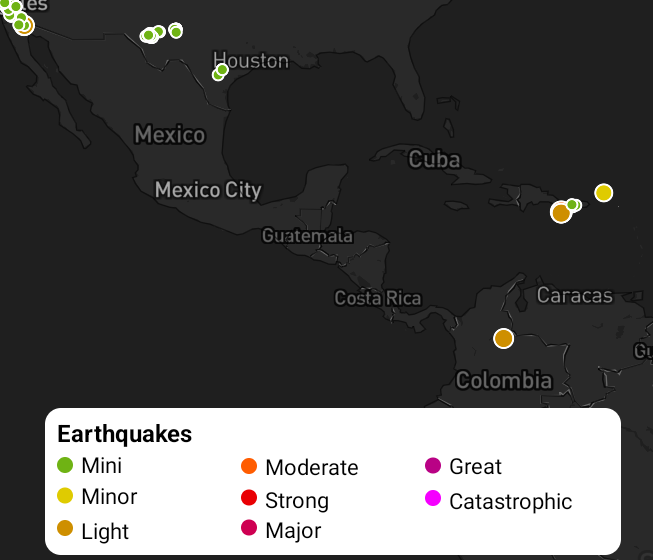
Custom Weather Styling
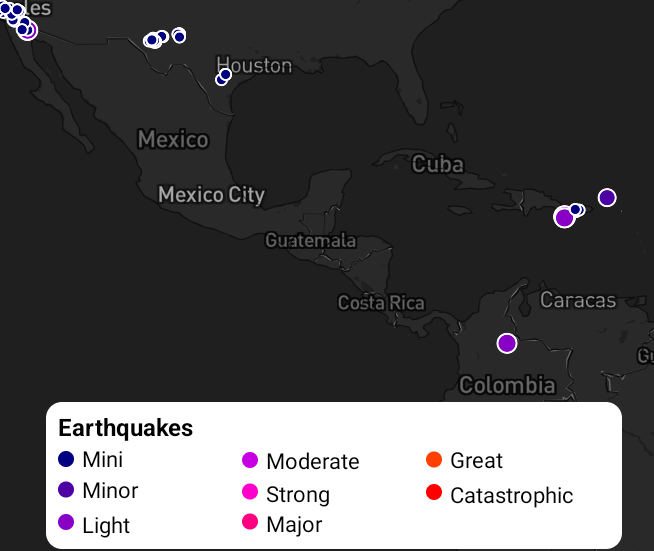
When you customize the paint properties of a layer, it will be reflected in your legend.
val paint = config.layer.paint as CircleLayerPaint
paint.fill.color = StyleValue.Expression(
    Expression.match(
        Expression.downcase(Expression.get("report.type")), listOf(
            Expression.Step("mini", "#000080"),         // Navy Blue
            Expression.Step("minor", "#4d00a4"),        // Deep Purple
            Expression.Step("light", "#8800c5"),        // Purple
            Expression.Step("moderate", "#c700e3"),     // Magenta
            Expression.Step("strong", "#ff00cc"),       // Hot Pink
            Expression.Step("major", "#ff0080"),        // Pink / Rose
            Expression.Step("great", "#ff4000"),        // Orange-Red
            Expression.Step("catastrophic", "#ff0000")  // Red
        ), "#999999"
    ),
)
The changes you make to Weather Layers will be reflected in your legend:
You can also customize Sample layers and legends using this method:
val config = WeatherService.Temperatures(controller.service) as WeatherLayerConfiguration<*, *>
val paint = config.layer.paint as SampleLayerPaint
val colorScale = ColorScaleOptions(
    stops = listOf(
        ColorStop(-50.0, "#08306b"), // Deep Blue (very cold)
        ColorStop(-20.0, "#2171b5"), // Medium Blue
        ColorStop(0.0, "#deebf7"), // Light Blue / White (freezing point)
        ColorStop(15.0, "#ffffd4"), // Light Yellow (cool/temperate)
        ColorStop(25.0, "#fdbe85"), // Light Orange (warm)
        ColorStop(35.0, "#fc4e2a"), // Orange-Red
        ColorStop(50.0, "#b10026")  // Deep Red (very hot)
    )
)

paint.sample.colorScale = colorScale
controller.addWeatherLayer(config)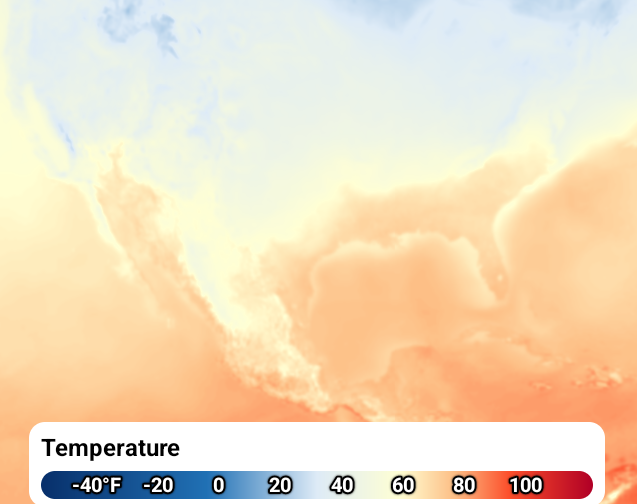
Refer to the documentation on customizing weather layers for more information.
Custom Legends
If you are adding your own custom data sources and layers on your map, you may also need to show a legend for your data. The MapsGL SDK also allows you to create custom legends similar to the built-in weather layer legends but for your own data visualizations.
Refer to the advanced legends guide for more details and examples on creating custom legends.